A page is something a bot writes for you to read and keep, outside the chat, such as a report, a guide, or a plan. The library keeps it, with every version.
- Add pages from Plugins, on Browse, where fxbot’s picks list it. Essentials has it too. It needs fxbot 0.7.0 or newer.
- Ask a bot for something to keep, in your own words: “write up our trip plan as a page”, or “make a report on last week’s sales”.
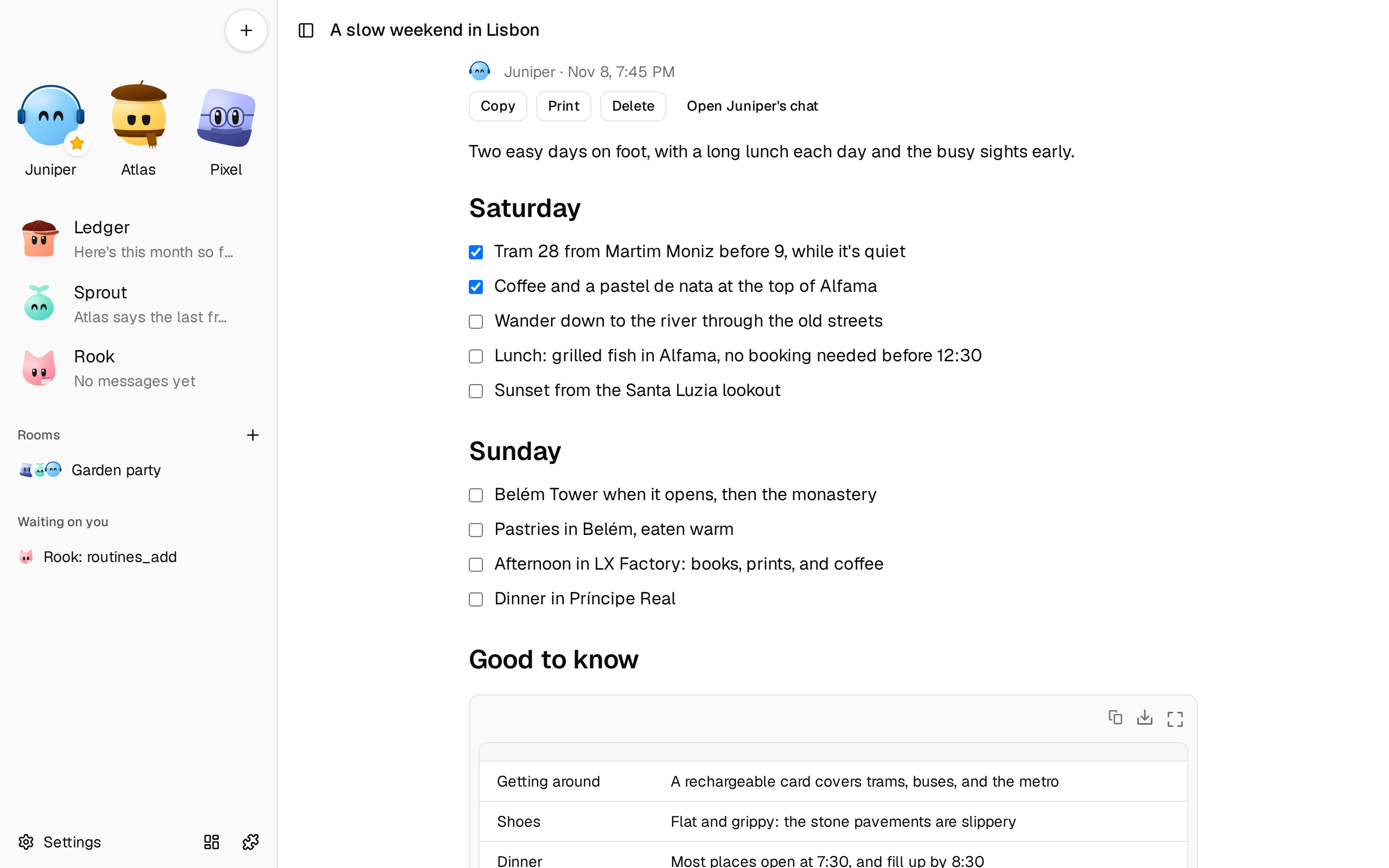
- The bot writes it, and says in a sentence what it covers. A card in the chat has the page’s title and Open.
A bot also writes a page without being asked when its answer would be long, such as a report, a comparison, research findings, or a plan. What a few sentences answer stays in the chat. To have an answer in the chat instead, say so: “just tell me here”.
Read it
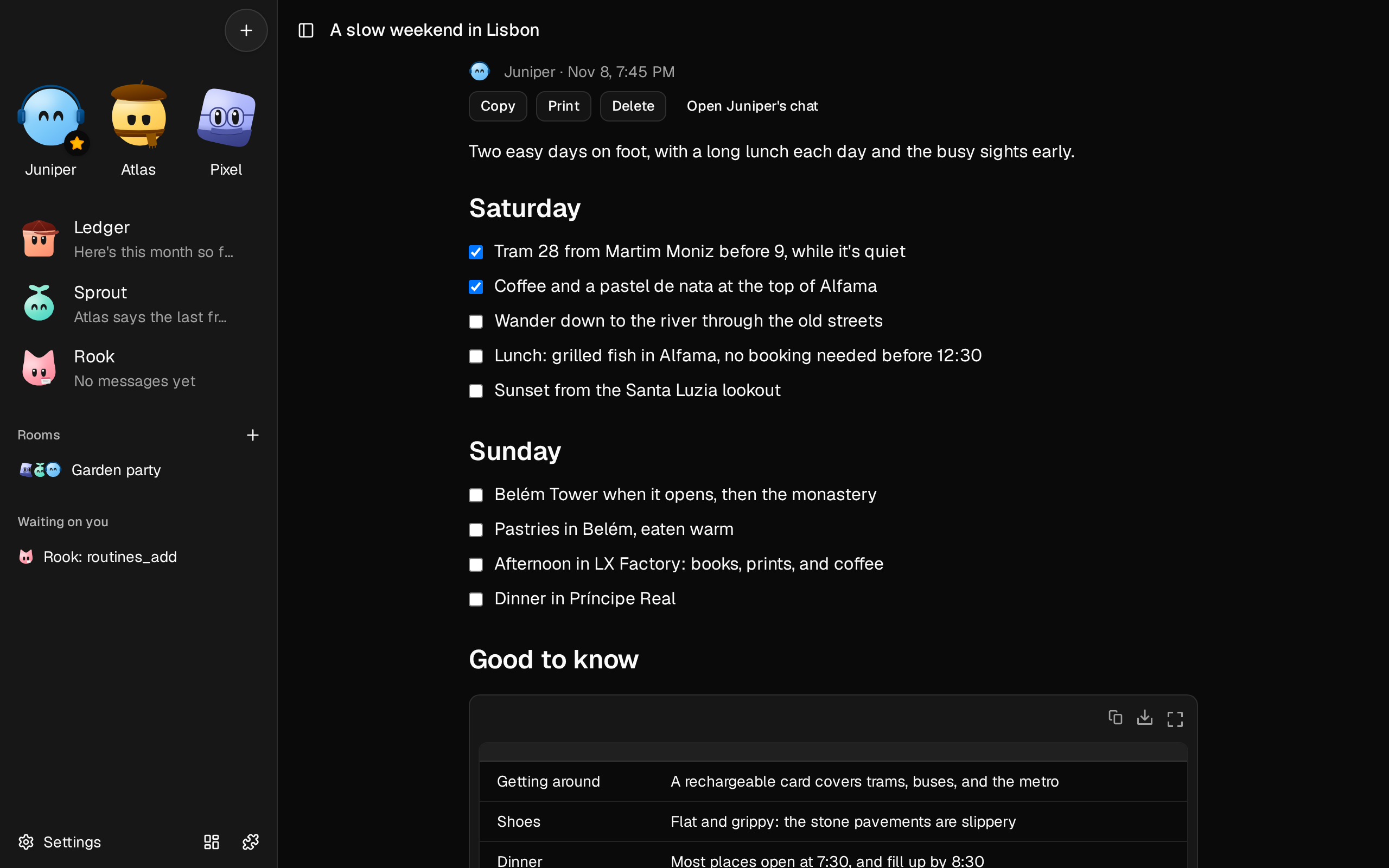
Section titled “Read it”Open fills the screen with the page, at an address of its own, on a phone too. It can have headings, tables, code, and images from the library.
- Copy copies its Markdown.
- Print prints it, or saves it as a PDF, which is how a page goes to someone who can’t reach your fxbot.
- Delete removes it from the library, for every bot, with its versions.
Change it
Section titled “Change it”Ask the bot, in its chat: “move day two to the coast”. It changes the same page, and a new card shows the new version. An older card says Updated since, and opens the newest.
Each request makes one version. To go back, pick an earlier one on the page, and choose Restore. That makes it the newest, so nothing is lost.
Tick things off
Section titled “Tick things off”Ask for a checklist: “make me a packing list as a page”. Each item has a box, and what you tick stays. The bot sees it too, so you can ask “what’s left?”, and if it rewrites the page, it keeps your ticks. An older version shows the ticks it had, and Restore brings them back.
Find it later
Section titled “Find it later”A page is in the library, under Documents, and on the bot’s panel beside its chat. Open page, in its preview, opens it. Ask the bot for it too: it finds its pages by what’s in them.
Charts and controls
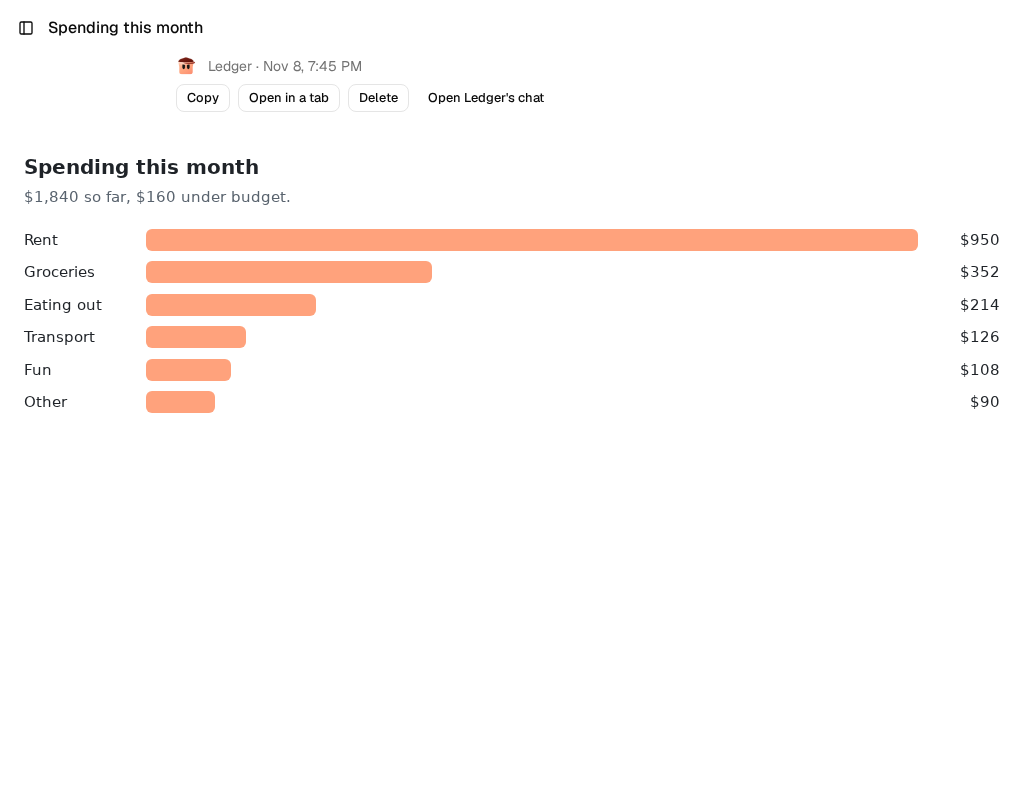
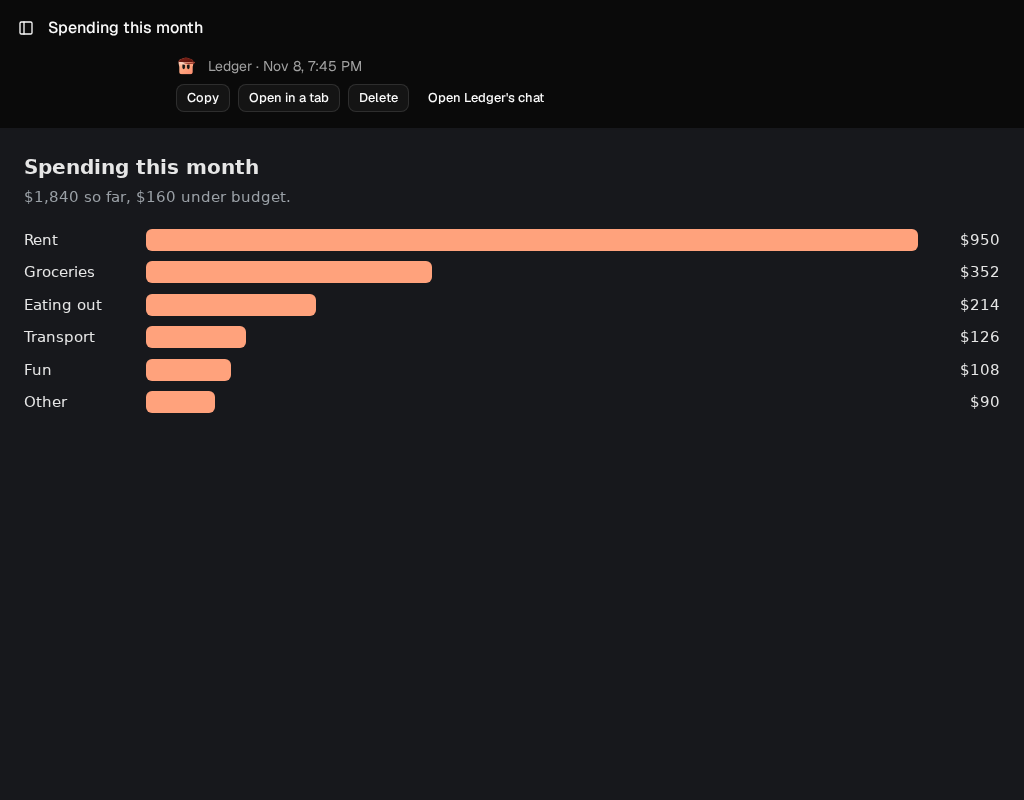
Section titled “Charts and controls”When a page needs more than text, such as a chart with filters, ask for that, and the bot writes the page in HTML. It costs more to write, and any change rewrites it.
- It stands alone, in a frame of its own, so the bot draws its charts itself.
- A link shows its whole address above the page, and opens when you say so.
- If the bot is set to Ask in what it can do alone, it waits for your OK first, since a page’s code runs when you open it.
- A page can save what you do on it, such as a note or a filter, if the bot built it to. To change the page itself, ask the bot.
- A button on a page can draft a message to the bot. You read it, and choose Send.
- If a page hits an error, a line below it says so, and Tell the bot drafts a message about it.
- Open in a tab opens it alone, to print.
Keep its numbers current
Section titled “Keep its numbers current”A bot can send an HTML page new numbers without rewriting it, which costs a fraction of a rewrite. Ask for a dashboard, then a routine: “every morning, update the sales page’s numbers”.
The first time, a bar on the page says the bot wants to give it data. A page with code can send what it holds elsewhere, so only choose Allow for a page you’re happy to trust with that data. What was waiting then arrives. If the bot rewrites the page, it asks again. An open page shows new numbers when you come back to it.
From a routine or a room
Section titled “From a routine or a room”- A routine can write a page, such as a weekly report, and its result arrives in the bot’s chat with the page attached. An HTML page on Ask waits for your OK, and the routine’s request expires after 30 minutes.
- In a room, there’s no card, so the bot links the page in what it says.
Remove it
Section titled “Remove it”Remove, on the plugin’s tab in Settings, leaves each page in the library as a document, at its newest version. Its older versions go.