A plugin gives your bots more, or changes fxbot itself. It carries any mix of three things:
- skills: instructions for a kind of task, which a bot reads when a task calls for them
- MCP servers: tools from a remote service
- code, which runs inside fxbot and can add a screen, a group in the sidebar, tools, and settings of its own
By default, fxbot shows only the plugins it vets, tagged fxbot. Each has a page in the plugin directory, which says what it carries.
- Open Plugins, the puzzle button at the bottom of the sidebar, and choose Browse. fxbot’s picks you haven’t added are listed, each with what it carries beside its name. Each plugin’s icon is drawn from who made it and its name, so it looks the same wherever it shows, here and on fxbot.sh.
- Choose one to open its page. fxbot reads it at its newest version, and the page shows what it carries, with Docs, a link to its guide here, for one of fxbot’s own. For code, under Runs inside fxbot, choose Read to see each file: code runs with everything fxbot can reach.
- Choose the Add button, which names the plugin. fxbot shows it under Installed, with what it carries, and what it adds to the app shows at once. Its name there opens its page again, read from the files it runs, with Settings in place of Add.
- To change its settings, open its tab in Settings. Each plugin has one, with its bots, settings, log, updates, and Remove, and Docs at the top when its page has it. A secret setting is sealed, and the page never shows it again. A plugin’s MCP servers are on its tab too, each with its own sign-in or key and tools.
- To give it to some bots only, choose Choose under Bots, and switch it on for each bot that should have it. Its servers follow, and its screens are for everyone.
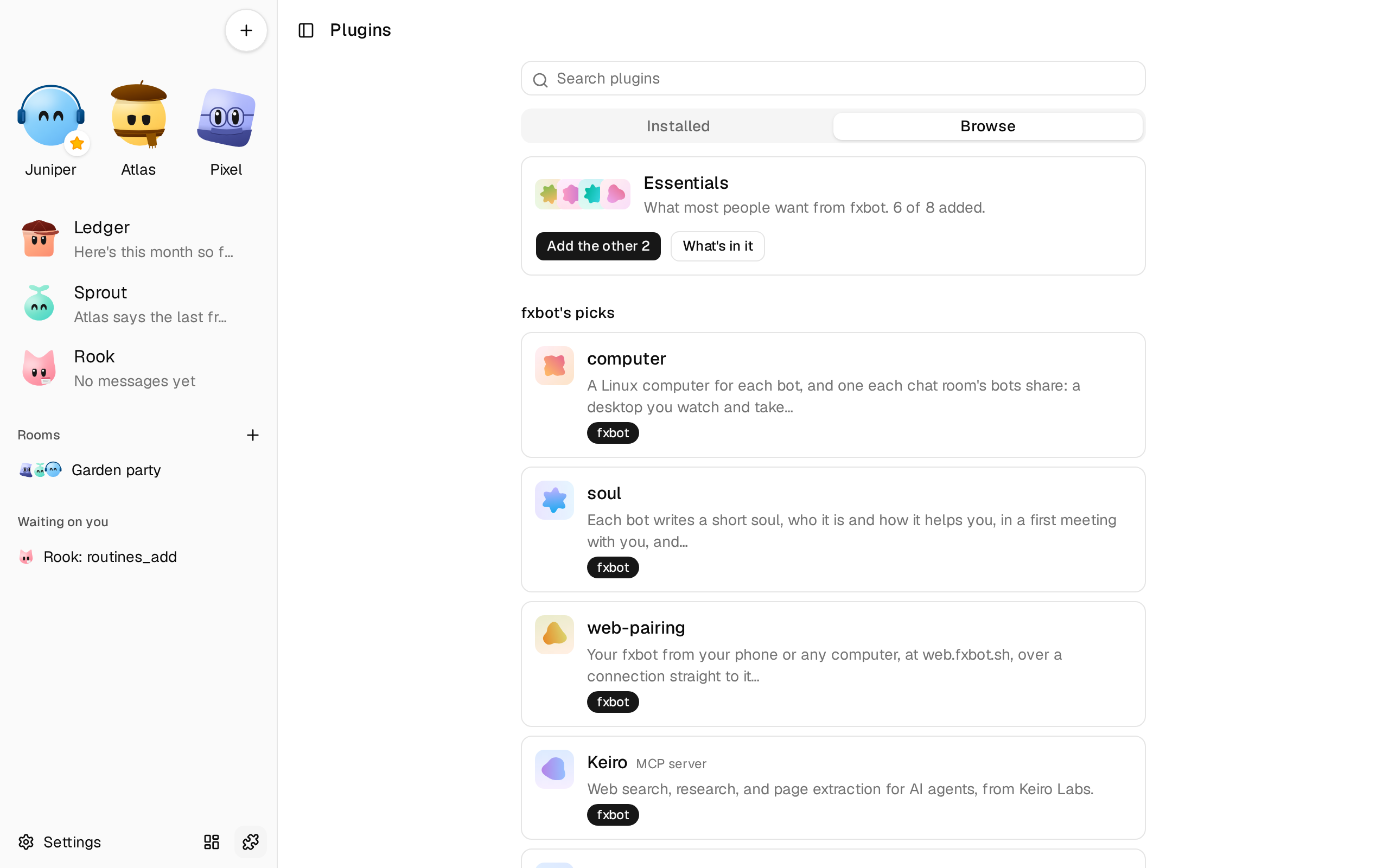
Essentials
Section titled “Essentials”Essentials, at the top of Browse, is what most people want from fxbot, and it’s what first-run setup offers. Add the other 3 adds the ones you don’t have, in order, and shows how each went. One that fails doesn’t stop the rest. What’s in it lists them, each opening its page, where you can read its code.
The pack is a shortcut, not a bundle: each plugin stays its own, so you can remove any of them, and the rest carry on.
A plugin that needs another
Section titled “A plugin that needs another”Some plugins build on another, such as one that installs programs on the computer. Its page says Needs computer, and Add waits until the computer is added. While it’s added, the computer can’t be removed. A bot that has it on and the computer off says Needs computer on this bot in its settings: switch the computer on for it too.
Show unvetted plugins
Section titled “Show unvetted plugins”fxbot’s picks are the plugins it vets. To see the rest, open Settings › Plugins, and turn on Show unvetted plugins. Browse then adds:
- MCP servers from GitHub’s registry, with Search everything for the official one, and Add by address: see Add an MCP server
- skills from skills.sh: see Add a skill
- From GitHub: any plugin with a
plugin.json, by its repository, asowner/repo, orowner/repo/folderwhen it’s in a folder
fxbot doesn’t vet any of these. Read what each one does before you add it. While the switch is off, fxbot asks none of those registries, and adds nothing but its picks. Plugins already installed keep working either way.
fxbot’s plugins
Section titled “fxbot’s plugins”- chat-rooms: rooms where several of your bots talk with you. Tag a bot with
@to ask it, and bots hand work to each other by tagging: see Talk with several bots in a room. - computer: a Linux computer for each bot, with a desktop you watch and take over, a terminal, a web browser, and files. Its engine is set up once on the machine: see Give bots a computer.
When it goes differently
Section titled “When it goes differently”- Its row says Off, with a reason. Its code failed to load, or its folder is gone. The rest of fxbot runs. Its tab in Settings shows its log.
- Its page says it needs a newer fxbot. Add stays off, and its code still shows. Update fxbot, then add it.
- Its row says Needs fxbot. A newer version of it needs a newer fxbot than yours. The one you have keeps running, and you can update it once you’ve updated fxbot.
- Its row says Unsupported. This fxbot broke something it uses, or fxbot’s list marks its version as bad. It doesn’t run, and the rest of fxbot does. Its tab in Settings says why, with Update when there’s a version that fits. Its files, settings, and tables are kept. A plugin that guards your bots, such as permissions, isn’t guarding them while it’s Unsupported, so see to it soon.
- Its tab says its page didn’t load. Its code ran, and its part of the app didn’t. Update it, or ask its author.
- Settings says a plugin won’t run on the next release. It shows above Update, so you can wait for the plugin’s update first. fxbot finds this by reading names in a plugin’s code, so it can miss a break, and it can flag a plugin that’s fine.
- Its row says Update available. Its files changed in its repository. Open its tab in Settings and choose Update to: fxbot shows what changes, with the code to read, and moves only when you choose Update. If new code doesn’t load, the old version keeps running.
- A server it carries isn’t added. A plugin’s remote MCP servers are added with it, under the same rules as any other server: from GitHub, an address on this machine or your network isn’t added. Its log says why. A server that runs a command on this machine isn’t used yet.
- A file is passed over. Files over 2 MiB, and files that aren’t text, aren’t kept.
Remove, on its tab in Settings, runs the plugin’s own cleanup, then removes its tables, its settings, its files, and the servers it added.
To write a plugin, see Write a plugin in the SDK’s pages.